


 Previous
 Press the [User Tools/Counter] key.
 Press [Address Book Mangmnt].
 Press [Change].
 Select the item you want to display from [All Users], [User Code], [Fax Dest.], [Email] and [Folder].
 Select the name whose folder you want to register.
Press the name key, or enter the registered number using the number keys.
 Press [Auth. Info].
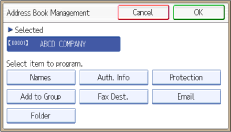
 Press [Folder Authentication].
 Press [Specify Other Auth. Info].
When [Do not Specify] is selected, the SMB User Name and SMB Password that you have specified in [Default User Name/Password (Send)] of File Transfer settings are applied.
 Press [Change] under "Login User Name".
 Enter the login user name of the destination computer, and then press [OK].
 Press [Change] under "Login Password".
 Enter the password of the destination computer, and then press [OK].
 Enter the password again to confirm, and then press [OK].
 Press [OK].
 Press [Exit].
 Press [Folder].
 Check that [SMB] is selected.
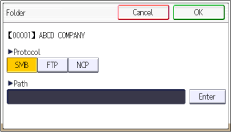
 Press [Enter] under "Path".
 Press [Enter] or [Browse Network], and then specify the folder.
To specify a folder, you can either enter the path manually or locate the folder by browsing the network.
For details about how to specify the path manually, see Locating the SMB folder manually .
.
For details about how to specify the path using Browse Network, see Locating the SMB folder using Browse Network.
 Press [Connection Test] to check the path is set correctly.
 Press [Exit].
If the connection test fails, check the settings, and then try again.
 Press [OK] three times.
 Press the [User Tools/Counter] key.

To register the name, see Registering User Information
.You can enter up to 128 characters for the user name and password.
You can enter a path using up to 256 characters.
If User Authentication is specified, contact your administrator.
For details on how to access System Settings, see Accessing User Tools
.


