


 Previous
You can enter text to use as a stamp.
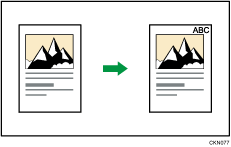

You cannot use the bypass tray with this function.
 Press [Edit / Stamp].
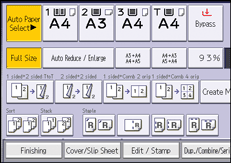
 Press [Stamp].
 Press [Stamp Text].
 Press [Change Text].
 Enter stamp text, and then press [OK].
 Press [Change].
 Select the stamp position, and then press [OK].
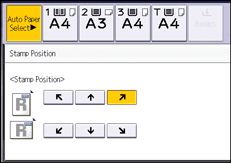
 Press [All Pages] or [1st Page Only] to select the print page.
 Press [OK] twice.

You can enter up to 64 characters.
When Auto Clear is done, the [Reset] key is pressed, or the power is turned off, the text is cleared. To save the typed text, you can register them in a program. For details about programs, see "Registering Frequently Used Functions", Convenient Functions.
Depending on the stamp position, parts of the text might not be copied.
For details, see Stamps
 .
.For details about how to enter text, see "Entering Text", Getting Started.
You can change the settings for Stamp Text under [Stamp Text] in User Tools. For details, see Stamp Text
.


