


 Previous
You can print a document stored in the Document Server using the Connect Print function.
Operate the machine in which the document you want to print is stored.
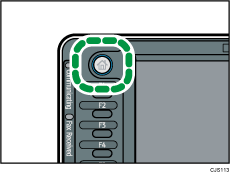
 Press the [Home] key on the top left of the control panel, and press the [Document Server] icon on the [Home] screen.
 Select a document to be printed.
 When printing two or more documents at a time, repeat step 2.
 When specifying printing conditions, press [To Printing Screen], and then configure print settings.
 Press [Connect Print].
The key is highlighted and the two machines are connected.
 Enter the number of copies with the number keys.
The maximum quantity that can be entered is 999.
 Press the [Start] key on the main machine.
The main machine begins printing using data stored in the Document Server. Printing on the sub-machine starts after the data is transferred from the main machine.

The number of print sets might differ on the main and sub machines.
Both machines may not finish printing at the same time.
Pressing [Back to File List] restores the document selection screen.
For details about the Document Server, see Storing Data
 .
.


